

How to install Mom Iptv
What’s IPTV Smarters Pro?
IPTV Smarters Pro, also known as Smarters Pro, is an IPTV player that enables you to stream content from IPTV subscriptions. It is also an IPTV management service, similar to Smart IPTV.
Unlike Smart IPTV, which requires a one-time activation fee, IPTV Smarters provides all the essential services for free. However, to access additional features, you’ll need to purchase the paid version. IPTV Smarters Pro does not offer IPTV services itself, such as hosting channels or providing playlists.
You will need to use the login credentials of another IPTV service. You must already have an IPTV service provider subscription to use IPTV Smarters on FireStick and other devices.
IPTV Smarters works only with IPTV services that support M3U playlists or have an Xtream Codes API. The most significant advantage of IPTV Smarters is that it allows login from multiple IPTV subscriptions.
Lastly, IPTV Smarters allows you to install and use EPG, if included in your subscription plan.
How to Install FALCON IPTV on FireStick
As mentioned, IPTV Smarters Pro is not available on the Amazon App Store. Therefore, we need to sideload it from an external website. Before doing so, we must prepare the FireStick to install an app from an unknown source.
Prepare Fire TV to Sideload IPTV Smarters Pro
By default, FireStick doesn’t allow the installation of unknown apps. To sideload a third-party app, you must disable the restriction. Besides, you also need a special app called the Downloader app to download apps from external sites. You can get it from the Amazon Store.
Here are the quick steps:
1. Click the Magnifying Glass > Search option on FireStick’s home screen. Type Downloader in the search bar. When the Downloader option appears in the search results, click it. Choose the Downloader icon on the following screen and download and install the app.
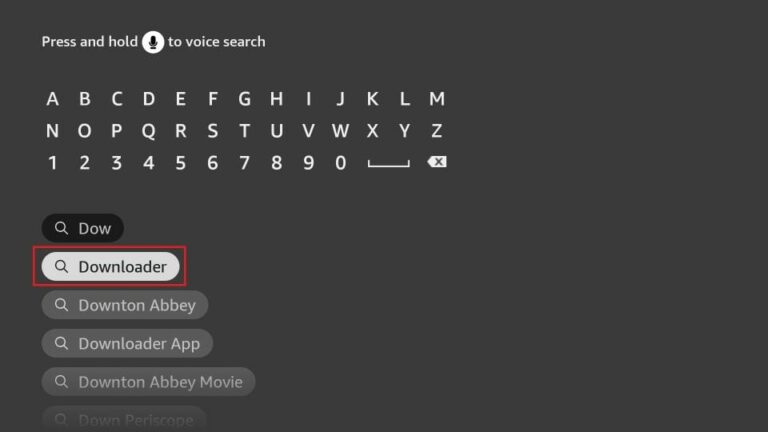
2. Click Settings>My Fire TV>Developer options.
You will see one of the following two options depending on your FireStick device version:
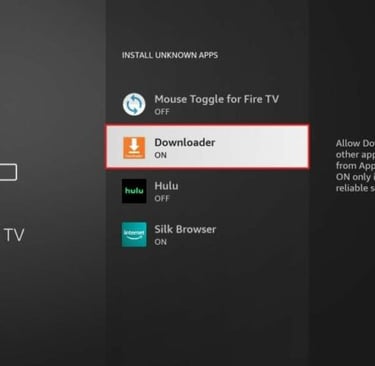
Option 1 (new devices) - Install Unknown Apps: Click it and proceed to the next step to enable Downloader.
Option 2 (old devices) - Apps from Unknown Sources: Click this option and then click Turn On on the following prompt. Skip the next step.
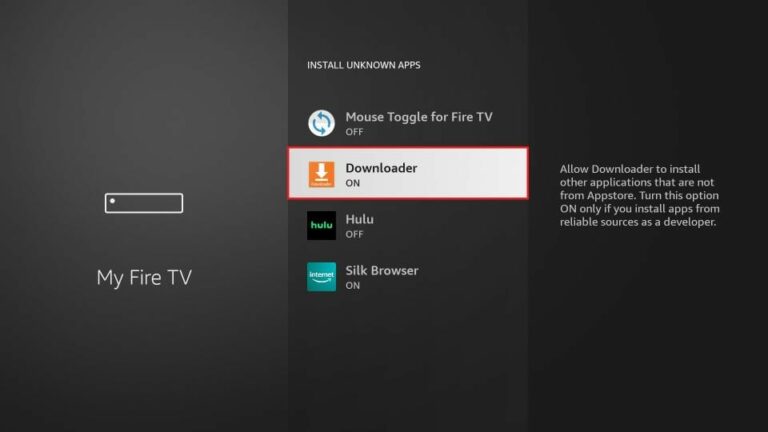
With this, you have configured the FireStick settings to allow the installation of IPTV Smarters and other third-party apps.
Sideload IPTV Smarters Pro APK
Here are the steps:
1. Open the Downloader app. Click the URL text box on the right side (make sure the Home option in the left menu is selected).
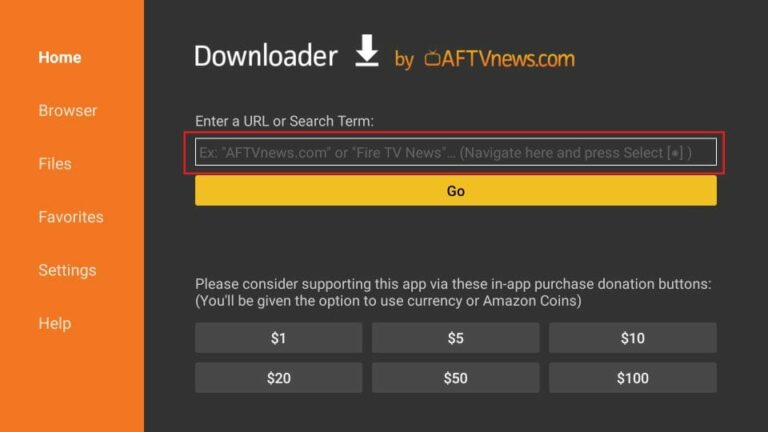
Note: When you run this app for the first time, a set of prompts will appear. Dismiss them until you see the following screen.
2. Enter the following 224877 and click GO. Then click the download link on the page that loads.
Note: FireStickTricks does not host this URL. It is a shortcut and redirects to another URL on an external server.
3. Wait a minute or two until the IPTV Smarter downloads onto your device.
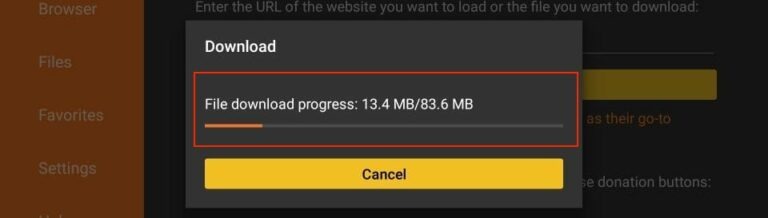
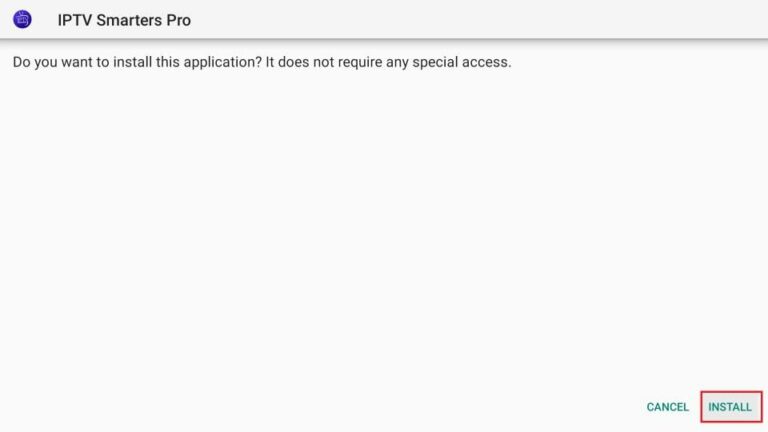
4. After the download is completed, the Downloader app will run the APK file, and the installation will start. Click Install.
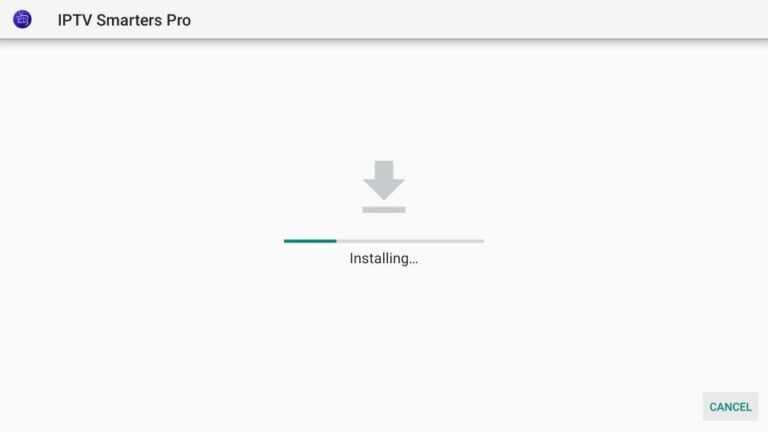
5. Wait for the installation to finish.
6. The installation is concluded, and the app installation notification appears. You may now click OPEN to start using IPTV Smarters. I recommend selecting DONE to delete the APK file and free up space on the FireStick storage.
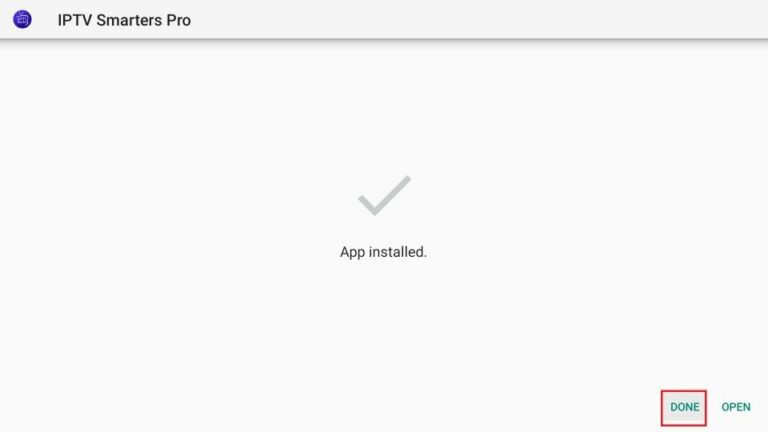
7. If you click DONE above, you will return to the Downloader interface. Click Delete.
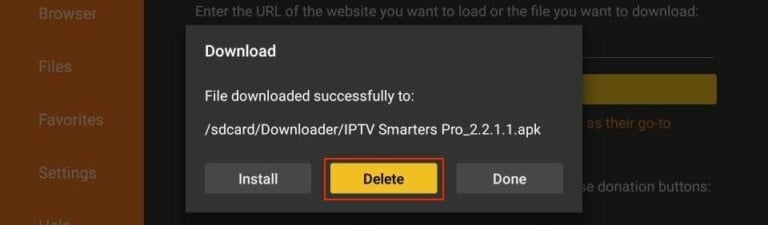
8. Again, click Delete.
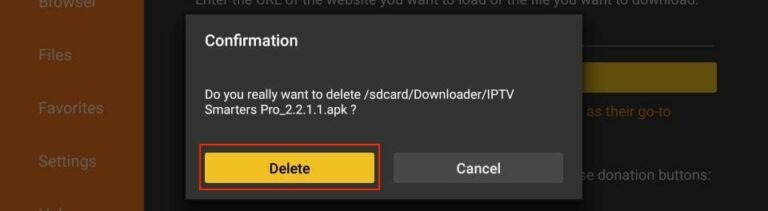
You now have the IPTV Smarters app on FireStick.
You’re now all set. A quick reminder: your internet provider and many websites/apps can see your IP address and some details about your connection. Using a VPN encrypts your traffic and masks your IP address, which helps protect your online privacy.
I recommend ExpressVPN. It’s a reputable VPN with strong encryption and fast connections, and it’s straightforward to install on Fire TV/FireStick and other devices.
Next, I’ll show you how to set up and use ExpressVPN on your Fire TV/Stick.
Step 1:
Subscribe to ExpressVPN HERE. It comes with a 30-day money-back guarantee. Meaning, you can use it for free for the first 30 days, and if you are not satisfied with the performance (which is highly unlikely), you can ask for a full refund.
Step 2:
Power ON your Fire TV Stick and go to Find, followed by the Search option.
Step 3:
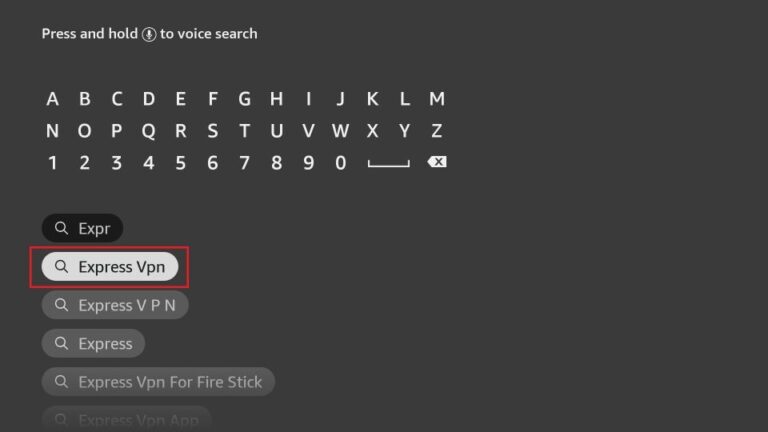
Now type “Expressvpn” (without quotes) in the search bar and select ExpressVPN when it shows up in the search results.
© 2026 MOM IPTV TV Design Themes

